Help centerGet startedUpdated Oct 12, 2026
Find your way around
The sidebar, project switcher, search, back links and the filters that every analytics page shares.
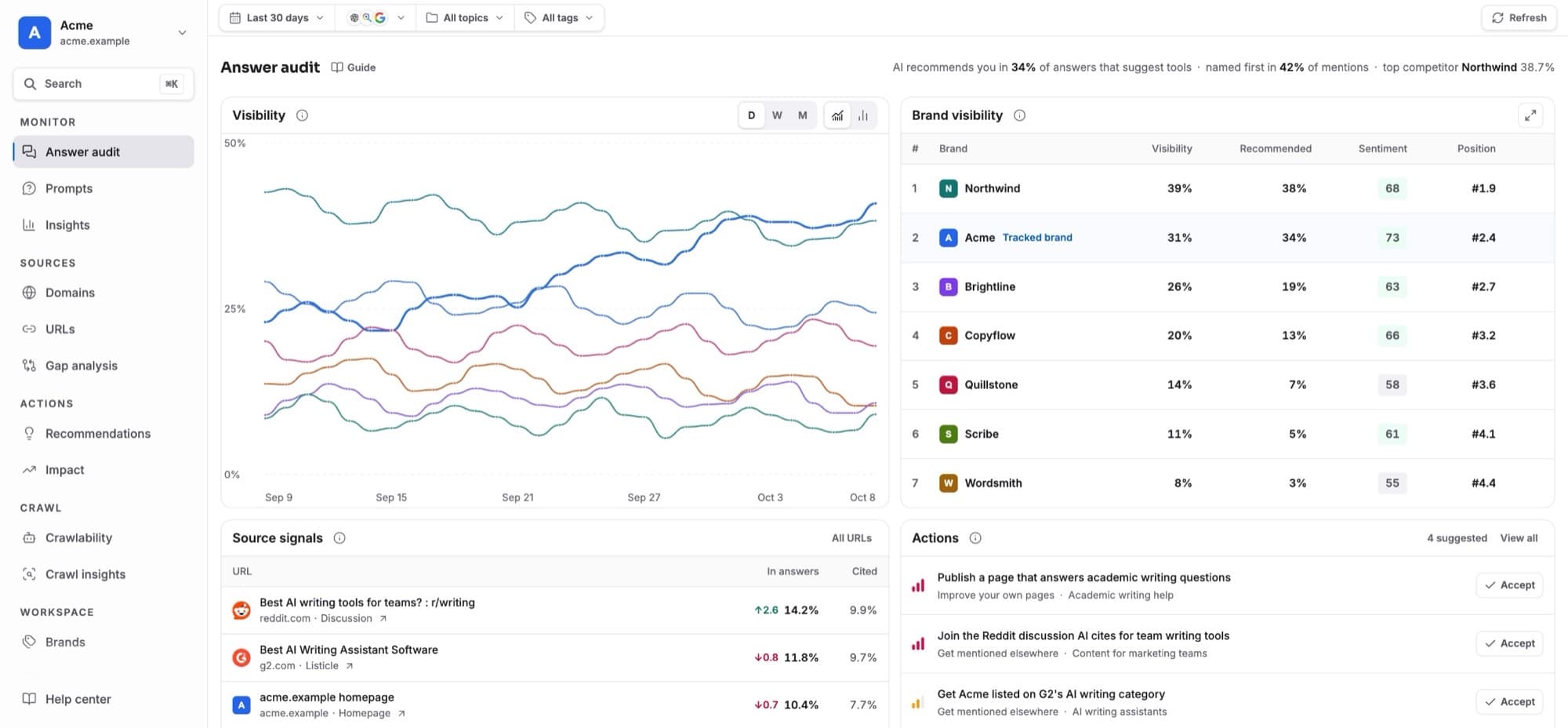
The sidebar follows the way you work: watch the answers, understand the sources, act, and check your site. A few shortcuts make moving between pages fast.
The sidebar
- Monitor
- Pages: Answer audit, Prompts, Insights
- Sources
- Pages: Domains, URLs, Gap analysis
- Actions
- Pages: Recommendations, Impact
- Crawl
- Pages: Crawlability, Crawl insights
| Group | Pages |
|---|---|
| Monitor | Answer audit, Prompts, Insights |
| Sources | Domains, URLs, Gap analysis |
| Actions | Recommendations, Impact |
| Crawl | Crawlability, Crawl insights |
| Workspace | Brands, Members, Projects, Settings |
On a phone, open the sidebar with the menu button at the top left. Your date, model, topic and tag filters follow you between the analytics pages.
A small blue dot after a page name means something new is waiting there since you last opened it: new answers (Answer audit), new suggested actions (Recommendations), an action result that is ready (Impact) or competitor suggestions to review (Brands). Hover the dot to see what it is; opening the page clears it. On a phone, the menu button shows the dot.
Switching projects
Click the project name at the top of the sidebar. The menu lists every project; the open one has a check. It also holds Add new project and Logout. To switch workspace, sign in again and choose one.
Search
Press ⌘ K (Ctrl K on Windows), press /, or clickSearch in the sidebar. Search finds prompts, topics, tags, brands, actions, domains, cited pages and pages of the app.
- A prompt
- Opens its answers in Answer audit. ⌘ ↵ opens the prompt for editing instead.
- A topic or tag
- Opens Insights filtered to it.
- A domain or page
- Opens its source details.
- An action
- Opens the recommendation.
- Any word
- “Answers that mention …” lists every answer containing it.
Before you type, you see your recent picks and quick actions for your role: Add a prompt,Add a competitor, Invite a member, Change AI models,Answers that need attention, Show wins, Start here: take the tour. Use ↑ ↓ to move and↵ to open.
Going back
- When a link takes you to another page, for example from an action’s evidence to an answer, a ← Recommendations button appears at the top left. It returns you to exactly where you were: same filters, scroll position and open item.
- Open answers and actions are part of your browser history, so the browser’s Back button closes them.
- Detail pages, such as a domain’s, have a back arrow at the top left that returns to the list as you left it.
The Start here tour
The Start here checklist at the bottom of the sidebar shows you around and then walks you to your first win in about five minutes. Each step is a short tour on the real pages: a dark card points at one part of the page, explains it, and moves on when you click its button. Open a step in the checklist to read what it covers and start it.
Learn your way around
The menu, the filters, search, the project switcher and the guides. Available straight away, even while your first scan runs. The other steps unlock when the first answers arrive; a message then offers Continue tour.See where you stand
Brand visibility on Answer audit: you against your competitors.See a real AI answer
Opens an answer and shows where every score comes from: the brands it names and the sources it cites.See where AI gets its answers
Domains: the sites AI reads most, by type.Find your win
Gap analysis: the sites AI uses when it names a competitor instead of you, and how to win each kind.
- The first step opens by itself once, on your first visit. When your project already has results, it carries straight on into the next step.
- The other steps need results, so they open once the first model of the first scan has answered. Until then they are greyed out.
- Click any step to take or retake it. Skip, the × or Esc ends the tour; an open answer stays open.
- Going to another page ends the tour too. Your progress is kept.
- The collapse button folds the checklist to its progress bar. The × hides it; search for “Start here” to bring it back and take the tour again.
- Progress is yours: every member has their own checklist, and it follows you to other devices.
Getting help
- Every page has a Guide link beside its title that opens that page’s guide.
- Help center at the bottom of the sidebar opens all guides.
- In search, type a question such as “add a competitor” to find the matching guide section.
- Guides open in a new tab, so your page keeps its filters, open answer and scroll position.
- The i buttons next to panel titles explain a number in one or two sentences, right where it appears.
Keyboard shortcuts
- ⌘ K
- Where: Anywhere
- Action: Open or close search
- /
- Where: Anywhere (on Prompts: the prompt search)
- Action: Search
- Esc
- Where: Menus, dialogs, selections
- Action: Close or clear
- ← →
- Where: An open answer
- Action: Previous or next answer
- ⌘ ↵
- Where: Search, on a prompt
- Action: Edit the prompt
| Keys | Where | Action |
|---|---|---|
| ⌘ K | Anywhere | Open or close search |
| / | Anywhere (on Prompts: the prompt search) | Search |
| Esc | Menus, dialogs, selections | Close or clear |
| ← → | An open answer | Previous or next answer |
| ⌘ ↵ | Search, on a prompt | Edit the prompt |